 EmailDJ
REPORT WHAT THE EVIDENCE SUPPORTS
Turn the week's correspondence into an update you can explain.
A project status report from email should separate completed work, current activity, blockers and next steps, with evidence behind each statement. EmailDJ's Calendar reporting flow helps prepare an editable update from period mail and calendar context, which you review before sharing.
EmailDJ is an AI email workspace for independent consultants. It brings tasks, outstanding replies, people and next actions together, with the original correspondence available for review.
01 / email-based reports
Define the period and the reader first
A client sponsor needs a different update from someone coordinating the next deliverable. Before generating a report, decide which engagement or topics matter, which period you are reporting on, and which decisions the reader needs to make. A summary of every message can be long while still failing to answer those questions.
Use the reporting period to separate recent developments from background history. A decision made before the period may explain the work, but it should not appear as a new achievement this week. Likewise, a future plan belongs with next steps rather than completed results. Keep each statement understandable without requiring the reader to reconstruct your entire inbox.
02 / email-based reports
Prepare the report in Calendar
- Review the relevant work. Check dated actions, expected deliveries and related correspondence, including any corrected dates.
- Choose Generate report. Use this week, this month or a custom period for the update you need.
- Provide a previous report when helpful. Use pasted text or a saved version so the next update can retain a useful structure.
- Review and edit. Inspect source references and review notes, correct uncertainty and remove anything outside the intended scope.
- Save or share the reviewed text. Save a version in Local Knowledge, or use copy and HTML export for the version you have checked.
A saved report is a report artifact, not a new fact about the task. The underlying correspondence still establishes what happened and what remains unresolved.
03 / email-based reports
Use a compact structure with clear evidence boundaries
Start with the current position, then list confirmed progress, open dependencies and the next actions. A short list of decisions needed from the reader is often more useful than a chronological digest. Name the result, the responsible person where supported, and the source that explains it.
Be precise about progress. Sending a proposal is completed activity, but it does not mean the proposal was accepted. A client saying they will review a document is an expected next step, not a completed review. If the mailbox does not contain evidence for a statement, mark the uncertainty or remove the statement rather than making the update sound more confident.
04 / email-based reports
Review changes before reusing last week's report
A previous report provides continuity, but it can also carry stale assumptions. Check every unresolved item against new correspondence: was it delivered, declined, redirected, postponed or only acknowledged? Update the result and its remaining dependency instead of repeating the same wording with a new date.
Also inspect what is missing from email. Work completed elsewhere may need your own verified addition. EmailDJ can help prepare a report from available mail and calendar evidence, but that does not establish a complete view of budgets, time tracking or every project system. Review the update for the reader's needs before copying, exporting or sending it.
CHOOSE WHAT FITS
A mail summary vs. a client status update
| Report element | A message digest might say | A useful status update clarifies |
|---|---|---|
| Activity | Several emails about launch | Which deliverable moved forward |
| Progress | The client replied | What the reply actually resolved |
| Blocker | Budget discussed | Whose decision remains outstanding |
| Next action | Review planned | Who does what next, with supported timing |
AN ILLUSTRATIVE EXAMPLE
A short update with one unresolved decision
Project: Client launch · [reporting period]
Current position: Launch preparation is progressing; the final date depends on the outstanding budget decision.
Confirmed progress: Maya approved the current copy in the latest launch thread.
Open dependency: Alex's budget confirmation is still outstanding. An acknowledgement has arrived, but no final decision.
Next action: Confirm the budget review date with Alex, then review the delivery plan against the agreed scope.
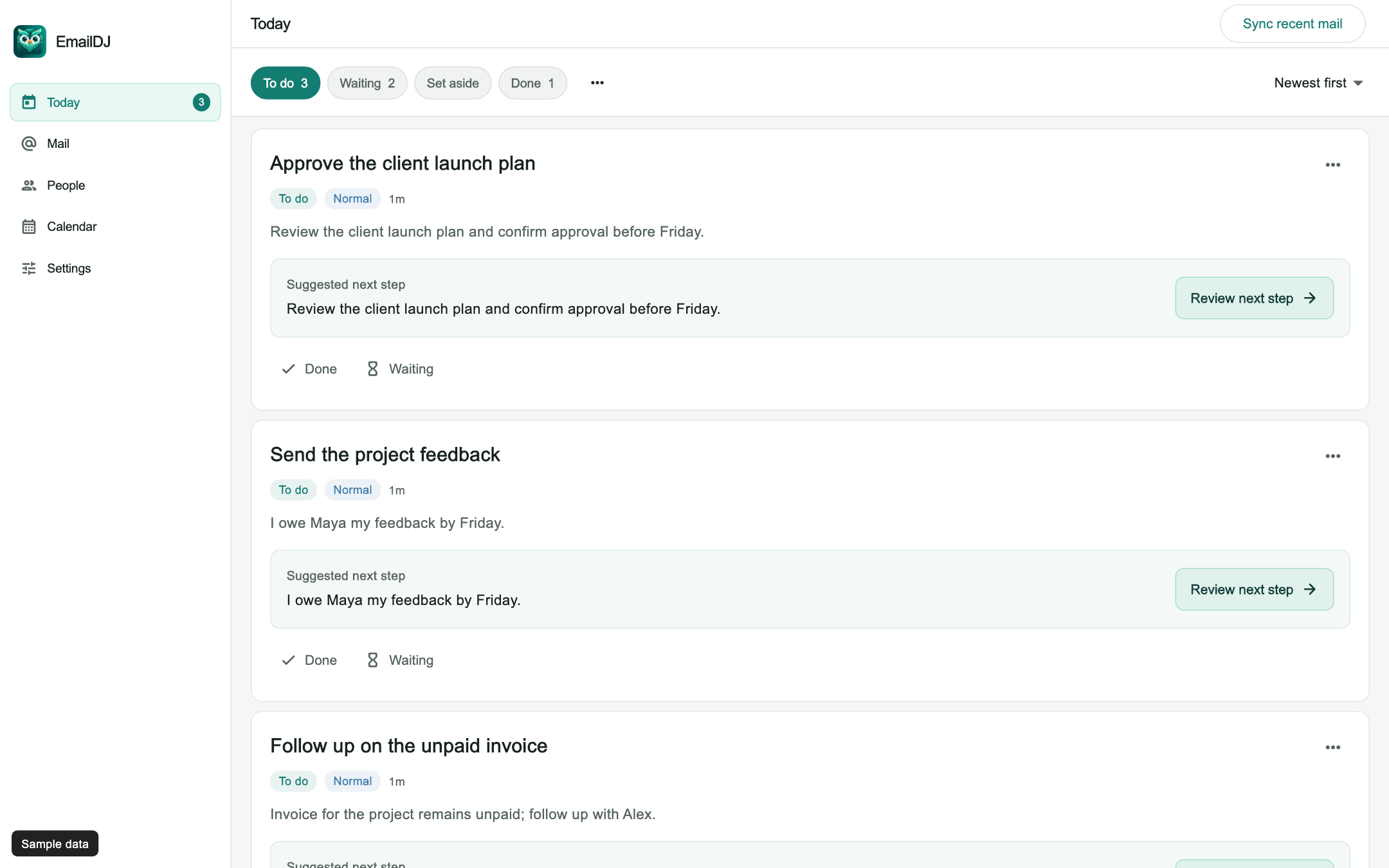
This is a fictional example of report wording, not a generated report from a real mailbox. Check every statement against your own evidence. The Today walkthrough illustrates tasks and source context; it does not demonstrate the Calendar report editor.
BEFORE YOU START
Common questions
Where are saved report versions?
Save version stores the report in Settings → Local Knowledge → Reports. A saved version can be reopened or used as context for a later update.
Can the report update a previous version?
Yes. The reporting flow accepts a previous report's text or a saved version. Review what changed and keep future plans separate from actual progress.
Are reports sent automatically?
This page describes generating, reviewing, saving, copying and exporting a report. It does not promise scheduled automatic delivery to clients or other project-management integrations.
LESS INBOX. MORE FOLLOW-THROUGH.
Try it with the work already in your inbox.
Explore the sample screens, check your mailbox setup, then choose the plan that fits. AI included and bring-your-own-key plans are available; AI usage and billing terms are explained with the plans.